Theme, orientation and spacing
Choose for where it will be shown
All of these settings are in the style panel, in the bottom-right corner of the diagram page. Line9 redraws the diagram after each change.
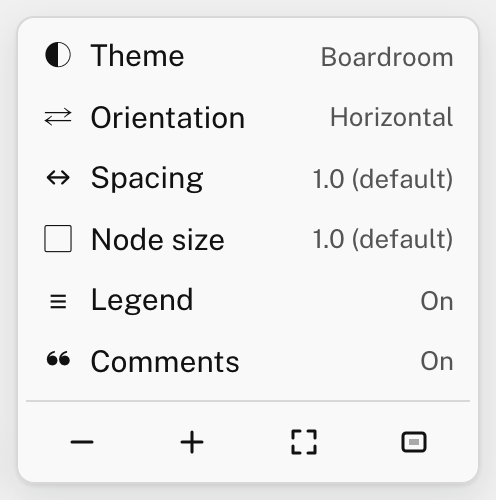
- A slide is wide: try a horizontal diagram.
- A document page is tall: try a vertical diagram.
- A screen can show either. For a large diagram, use less spacing.
The settings are saved in the diagram’s text, so a shared link, an exported file or a published diagram looks the same.
The diagram’s title
The title shows at the top of the diagram. To change it, click the diagram’s name in the bar at the bottom of the page, or choose Diagram ▸ Rename… from the menu.
In the text, the title is the title: line at the top:
---
title: Expense claim
---
Theme
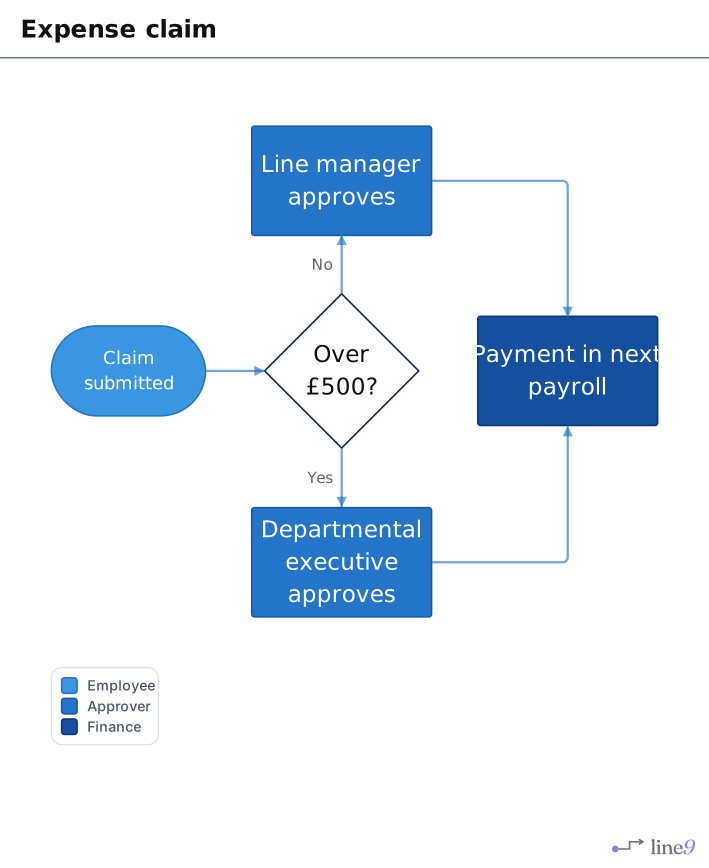
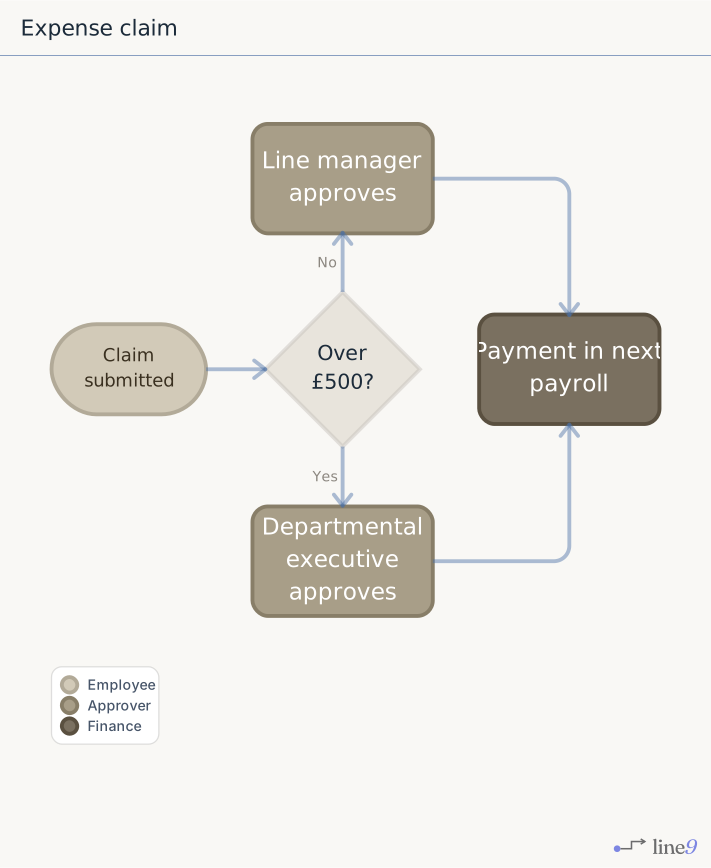
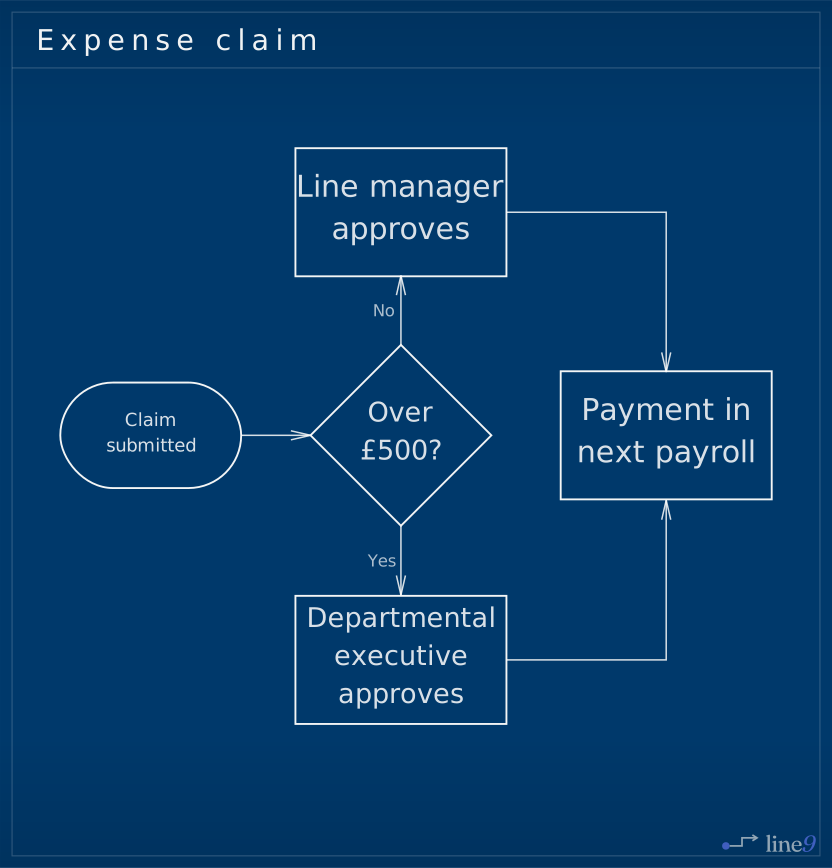
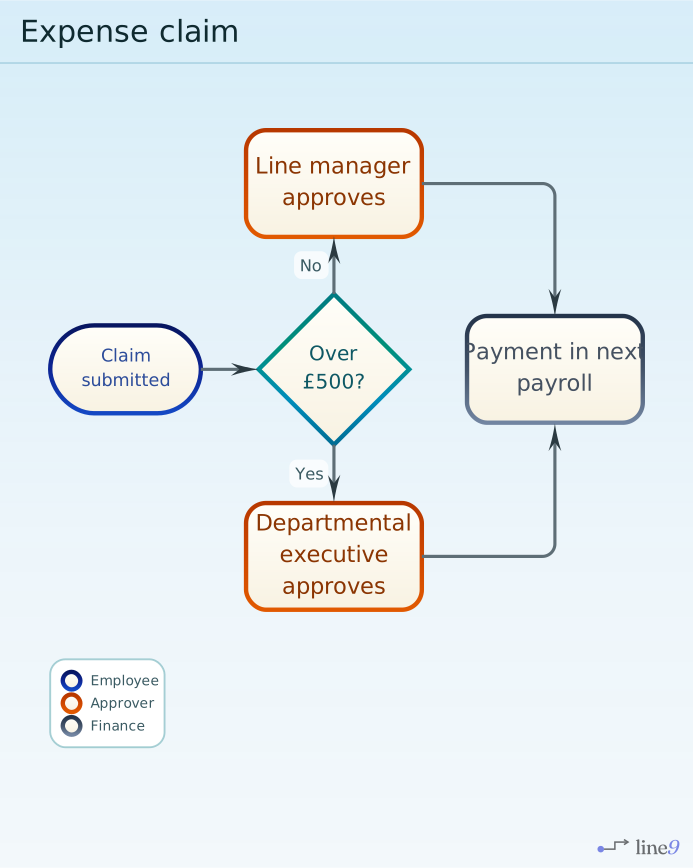
The theme sets the colours, lines and fonts of the whole diagram. Click Theme in the style panel and choose one.
| Boardroom | Linen |
|---|---|
 |  |
| Blueprint | Kingfisher (Line9 Pro) |
|---|---|
 |  |
A diagram that doesn’t name a theme opens in the theme you chose last.
Orientation
Click Orientation in the style panel to switch a flowchart between horizontal and vertical.
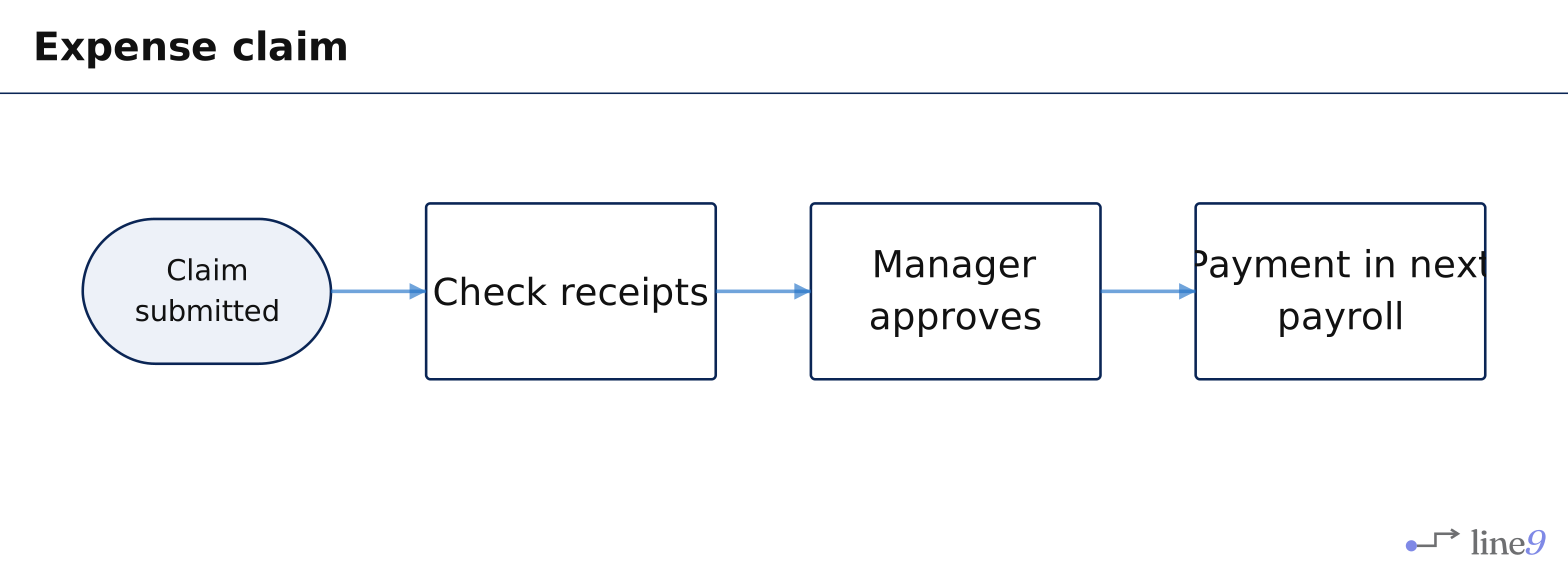
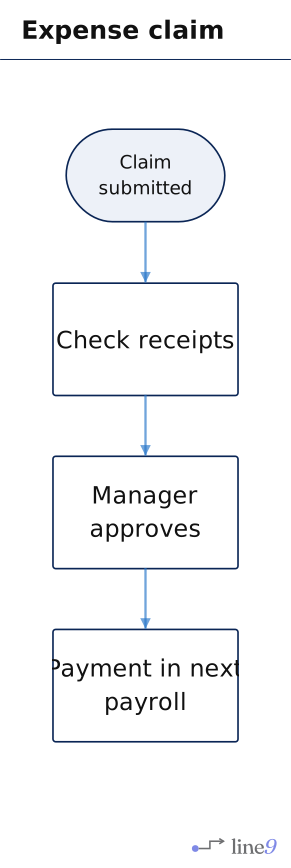
In the text, the orientation is set in the flowchart line: flowchart LR runs left to right, and flowchart TD runs top to bottom.
Spacing and node size
Both start at 1.0.
Spacing sets the room between nodes: 0.75, 1.0, 1.25, 1.5, 2.0 or 3.0.
- More spacing gives a diagram with only a few nodes a better balanced look, and makes room for longer edge labels.
- Less spacing fits more into the same space.
Node size scales every node: 0.25, 0.5, 0.75, 1.0, 1.5 or 2.0.
- A larger size makes room for more text in each node.
- A smaller size fits many nodes on one screen or page.
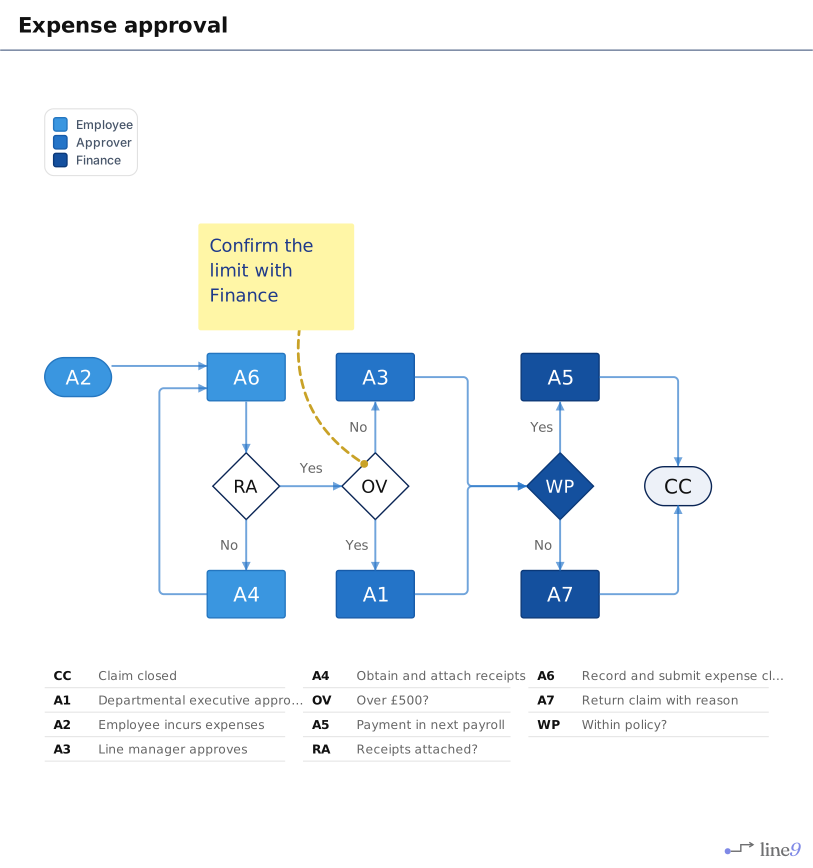
At 0.5 or smaller, each node shows a short code instead of its label, and a table lists what each code stands for:
The legend and comments switches
- Legend shows or hides the legend that names each class’s colour. It appears once the diagram has a class. See Colour-code with classes.
- Comments shows or hides every comment. It appears once the diagram has a comment. See Comments and text blocks.
Next
- Share a link, image or text: send the diagram, or put it in a slide or document.
- Colour-code with classes: colour nodes by role.