Edit the diagram's text
Every diagram is Mermaid text
A Line9 diagram is written as Mermaid text, with a line for each node and each edge. This text:
---
title: Approval
---
flowchart LR
  limit{"Over £500?"}
  manager["Line manager approves"]
  director["Departmental executive approves"]
  limit -->|"No"| manager
  limit -->|"Yes"| director
draws this diagram:
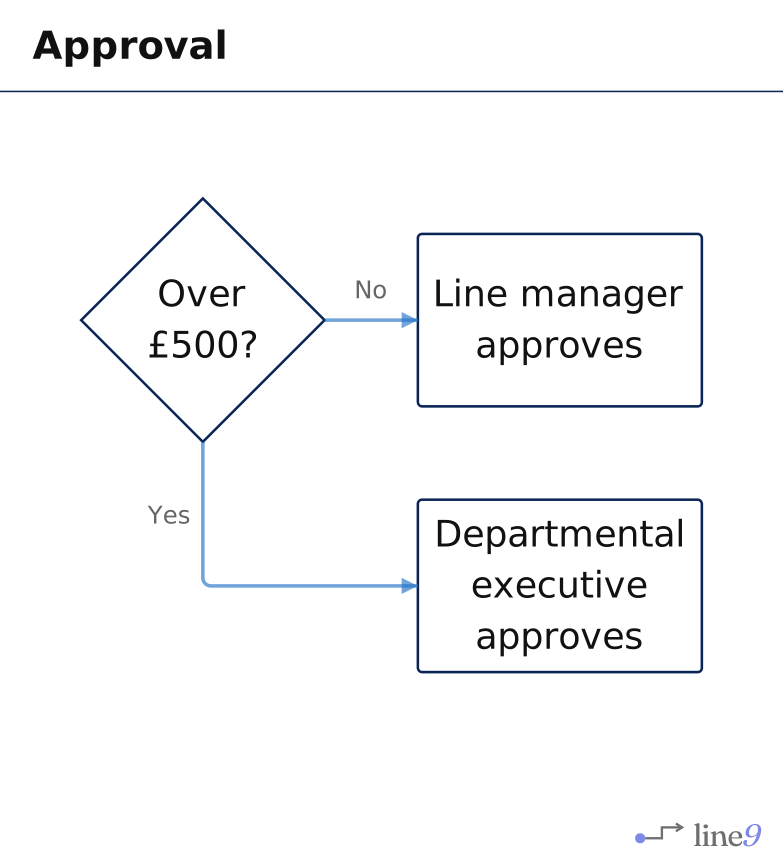
The text is the diagram: a shared link, an exported .mmd file and a published diagram all carry it.
Open the source panel
Click the mode button, VIEW, at the bottom of the diagram page and choose SOURCE, or press ⌘U (Mac) or Ctrl+U (Windows). The text opens on the left. Choose VIEW again, or click ×, to close it.
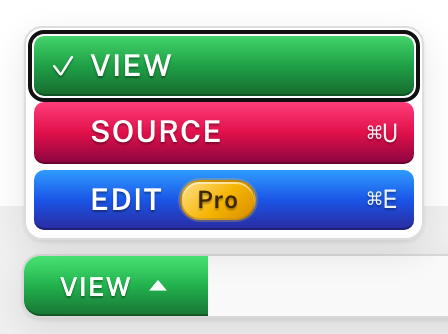
Copy source, at the bottom of the panel, copies the whole text.
Change the text
Type in the source panel. Line9 redraws the diagram as you type. Some common changes:
| To | Write |
|---|---|
| Rename a node | Change the text in quotes |
| Add a node | audit["Spot-check by Audit"] |
| Connect two nodes | manager --> audit |
| Change a node shape | Change the brackets: {"…"} draws a decision |
Nodes, edges and groups lists every shape and line style.
What Line9 writes into the text
When you change the theme or another style setting, Line9 writes it at the top of the text:
---
title: Expense approval
line9:
  theme: linen
---
The settings travel with the text, so the diagram looks the same wherever it is opened. Changing the orientation changes the flowchart line instead: flowchart LR runs left to right, flowchart TD top to bottom.
When the text has a mistake
Line9 keeps showing the last version it could draw. A message appears at the top, and the line with the mistake is highlighted in the source panel.

Click Show source to go to the line. When you correct it, the diagram updates.
Next
- Nodes, edges and groups: the parts a flowchart is made of.
- Theme, orientation and spacing: change how the diagram looks.