Editor tutorial
Before you start
In just a few minutes, you’ll build this flowchart of a purchase request with the keyboard:
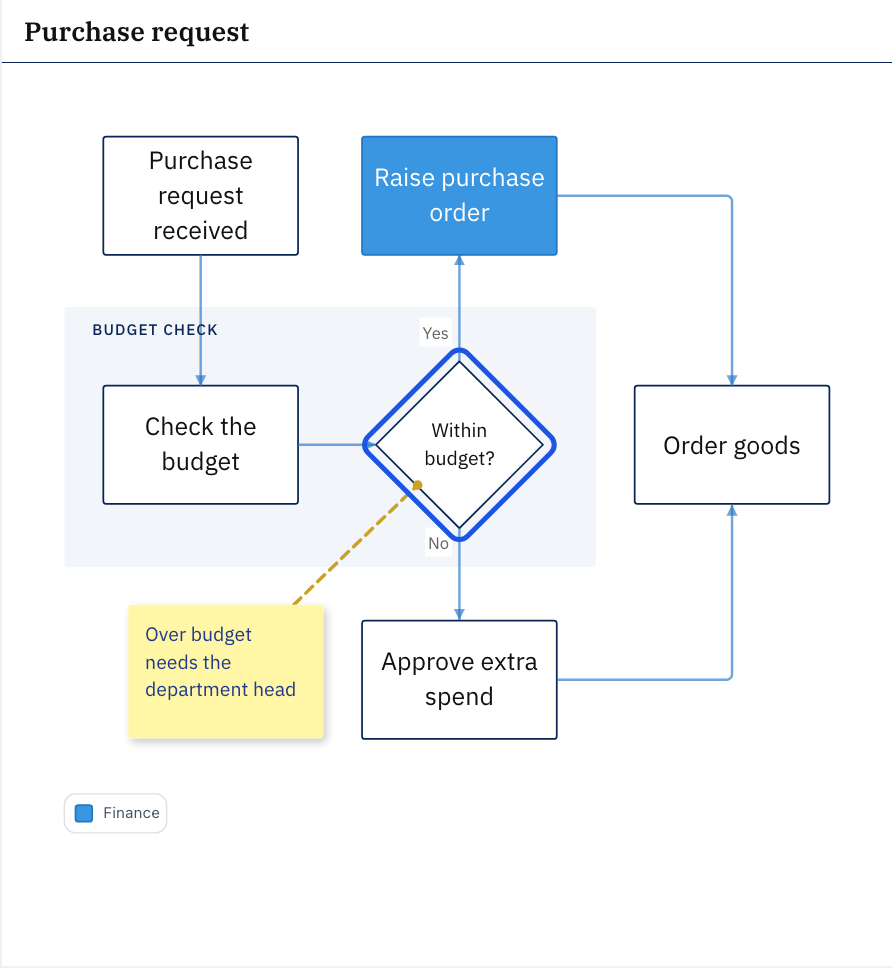
The Line9 editor comes with Line9 Pro. Without a Pro account you can still follow along: when Line9 offers a preview, choose Try it. Nothing you make in the preview can be kept.
Open the diagram and enter the editor
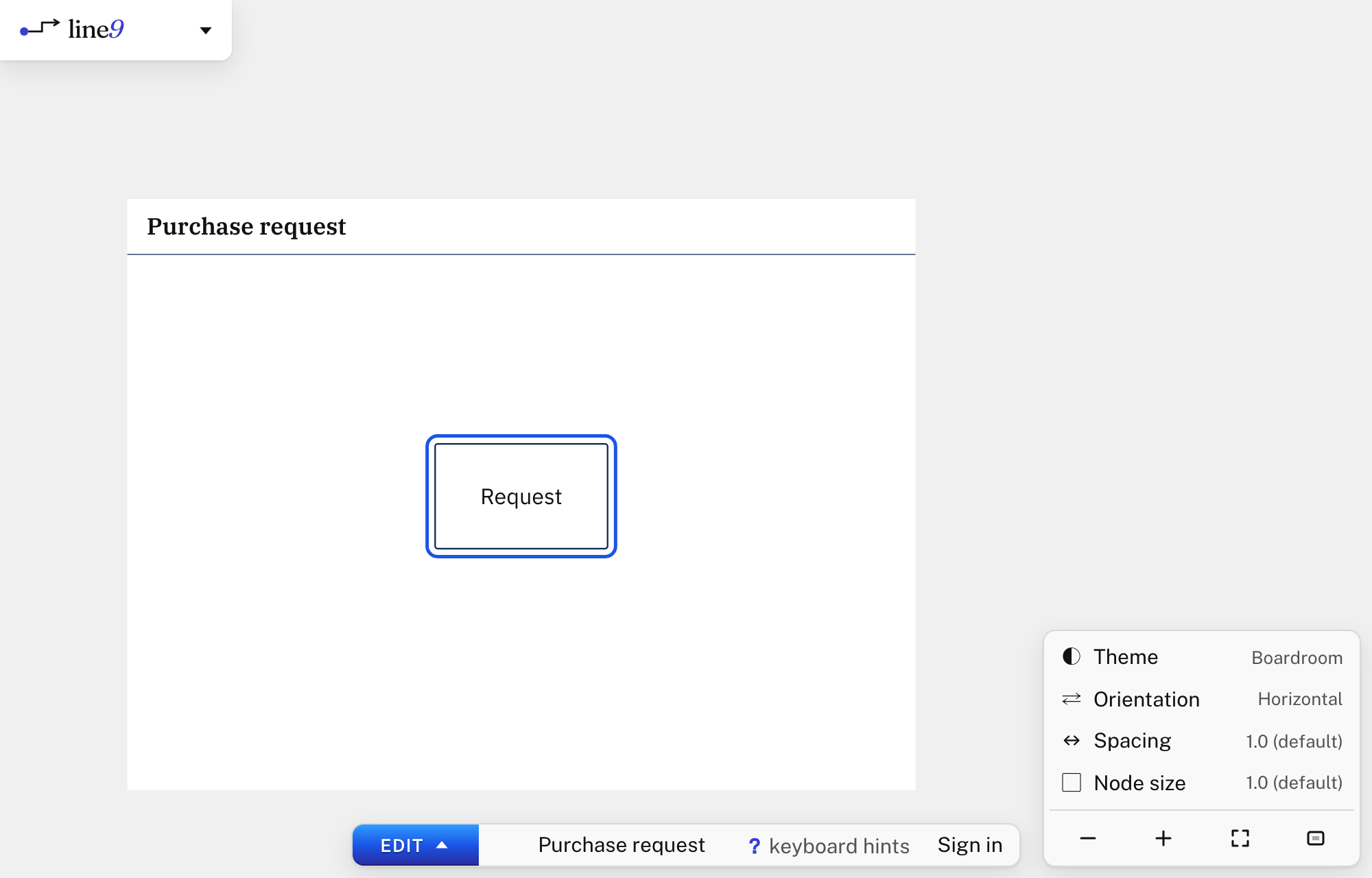
- Open the starting diagram. It has one node, Request.
- Press Enter. The editor opens, and a blue ring, the cursor, goes round Request. The mode button at the bottom shows EDIT.
Rename the first node
- Press
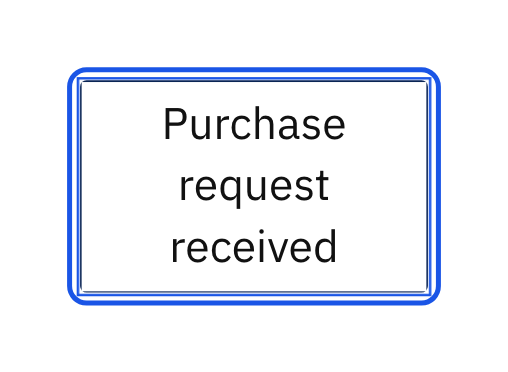
cc. The label clears, ready for you to type. - Type
Purchase request receivedand press Enter.
Add nodes
o adds a node after the cursor’s node, joined to it by an edge. The cursor moves to the new node.
- Press
o, typeCheck the budgetand press Enter. - Press
o, typeWithin budget?and press Enter. - Type
:shape diamondand press Enter. The node becomes a decision. - Press
o, typeRaise purchase orderand press Enter. - To label the edge into it, press
ce. A short code appears on the edge: type it, then typeYesand press Enter. The cursor is now on the edge. - Press
lor → to move the cursor on to Raise purchase order. - Press
o, typeOrder goodsand press Enter. - Press
O(Shift+O) to add a node that leads into Order goods. TypeApprove extra spendand press Enter.
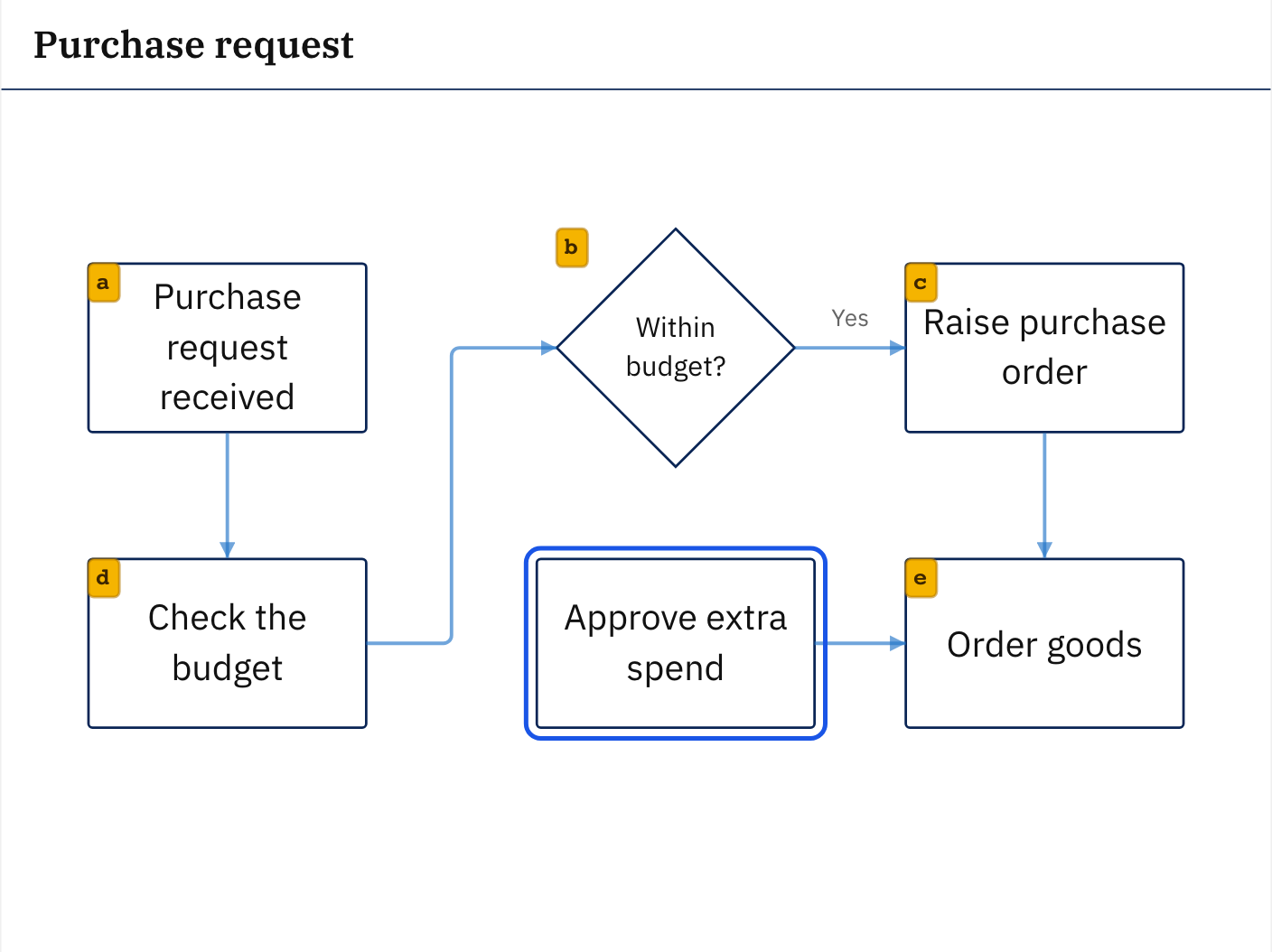
Jump to any node: Press
f, and a short code appears beside each node in view, except the cursor’s. Type a node’s code to move the cursor to it. If a node has no code, it is out of view: press ⌘0 (Mac) or Ctrl+0 (Windows) to fit the whole diagram in view, then pressfagain.
Connect two nodes with an edge
- Press
f, then the code on Within budget?. - Press
>, thenfand the code on Approve extra spend. A new edge joins the two, and the cursor moves onto it. - Press
cc, typeNoand press Enter.
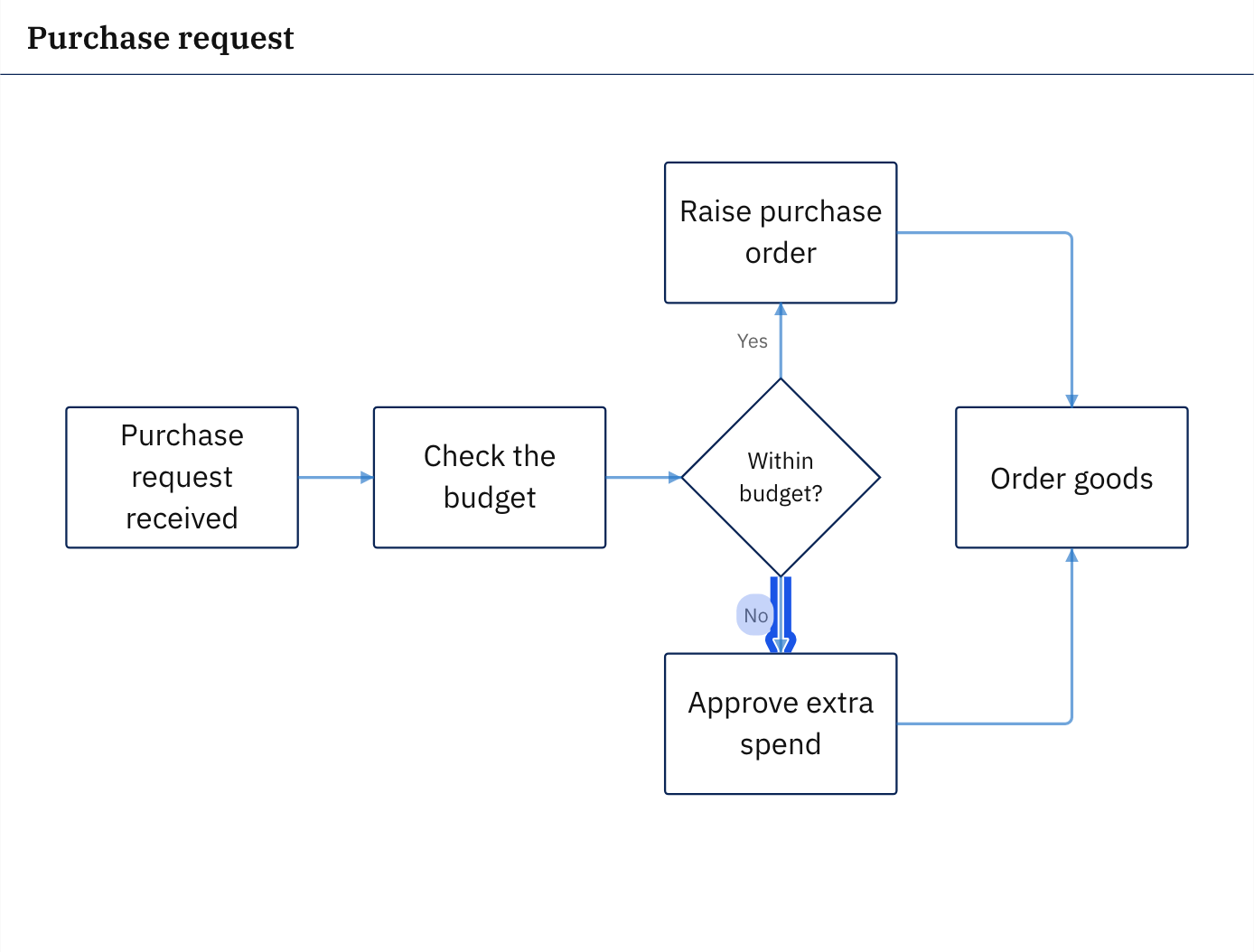
The other way:
>makes an edge from the cursor’s node to the node you move to. To make an edge the other way, into the cursor’s node, press<instead.
Give a node a class
A class names a role, such as a team. Each class gets its own colour: see Colour-code with classes.
- Press
f, then the code on Raise purchase order. - Type
:class Financeand press Enter. The node takes a colour, and a legend appears.
Add a comment
- Press
f, then the code on Within budget?. - Press
o, typeOver budget needs the department headand press Enter. - Type
:shape commentand press Enter. The node becomes a sticky note beside the decision.
Group two nodes
- Press
f, then the code on Check the budget. - Press
vto start a selection. Then pressfand the code on Within budget? to add it. - Type
:group Budget checkand press Enter. A group now holds both nodes. - Press Esc to end the selection.
Delete a node and undo it
- Press
f, then the code on Order goods. - Press
dd. The node is deleted. - Press
u. Order goods comes back, and the bar at the bottom says what was undone.

Leave the editor
Type :q and press Enter. The mode button shows VIEW again.

With Line9 Pro, Line9 writes your changes into the diagram’s text. Press ⌘U (Mac) or Ctrl+U (Windows) to see it. In the preview, the diagram goes back to how it was before using the editor.
What you used
| Keys | What they do |
|---|---|
| Enter | Enter the editor |
cc | Change the label |
o, O | Add a node after, or before |
ce | Change the label of an edge |
l, f | Move to the next node, or to a node by its code |
> | Connect to another node |
:shape, :class, :group | Change the shape, class or group |
v | Select several items |
dd | Delete |
u | Undo |
:q | Leave the editor |
Next
- How the Line9 editor works: modes, the cursor, and how to find what to press.
- Editor reference: every command, with its keys and mouse action.