Share a link, image or text
Copy a link
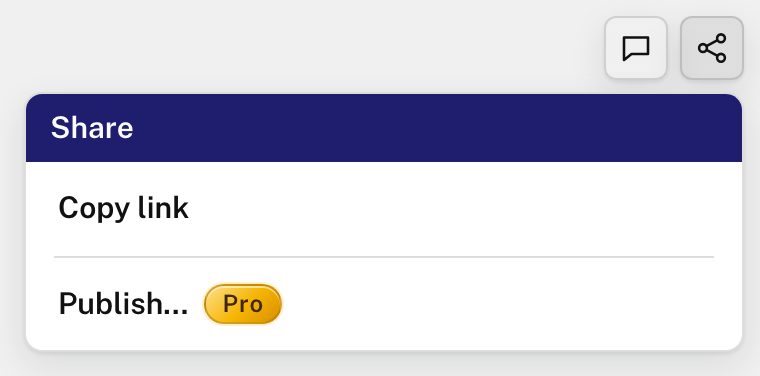
- Click the share icon in the top-right corner.
- Click Copy link, and paste the link wherever you like.
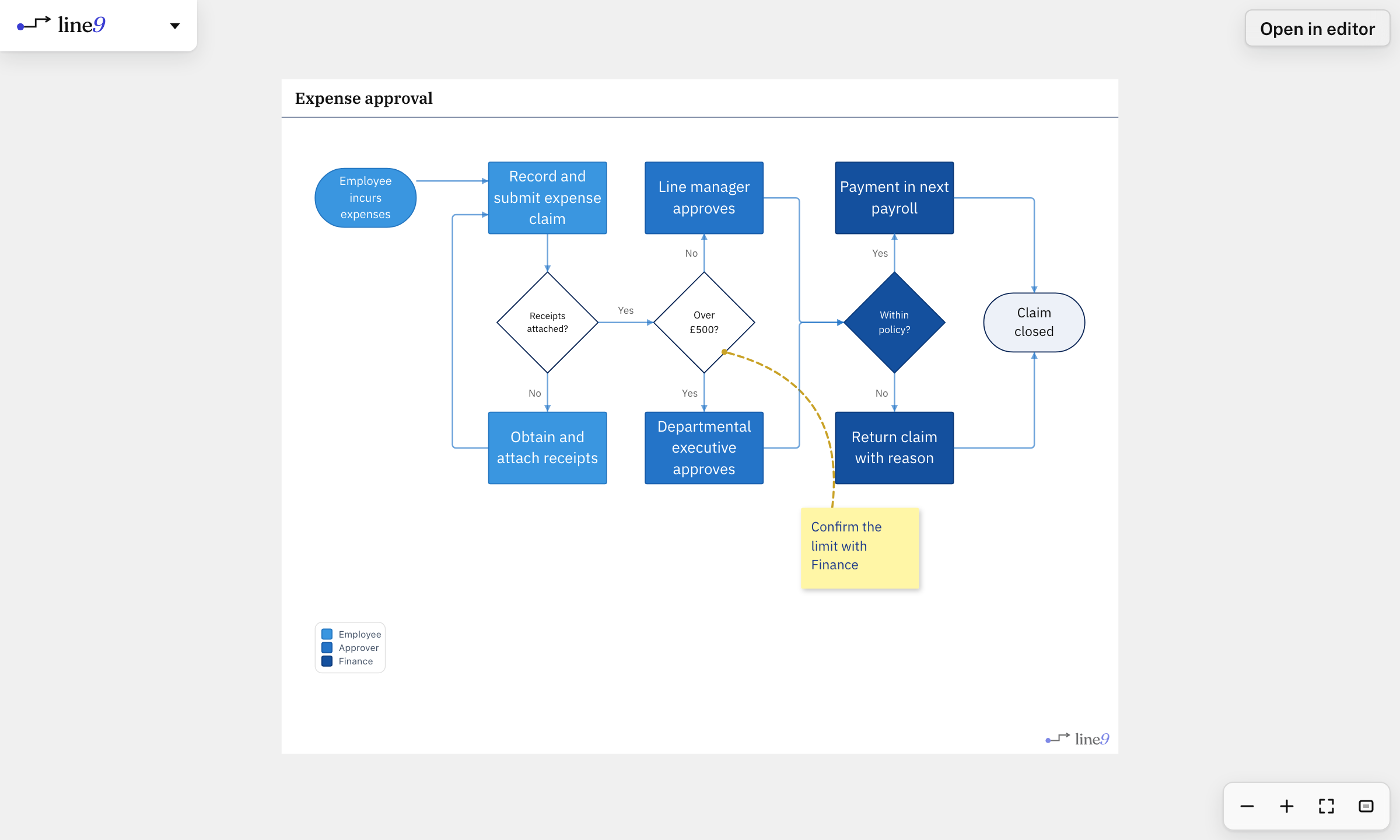
The link holds the whole diagram, with its theme and settings. If you change the diagram later, copy a new link: an old link still shows the diagram as it was.
Anyone can open and view the shared diagram – no account needed. They can’t change your diagram: Open in editor opens a copy on the diagram page for them to change.
On a phone or tablet, Copy link opens the device’s share options.
Put it in a slide or document
- Choose the theme and orientation that suit the slide or page. See Theme, orientation and spacing.
- Open the menu in the top-left corner and choose Copy as, then PNG. Or press ⌘C (Mac) or Ctrl+C (Windows).
- Paste the image into your slide or document.
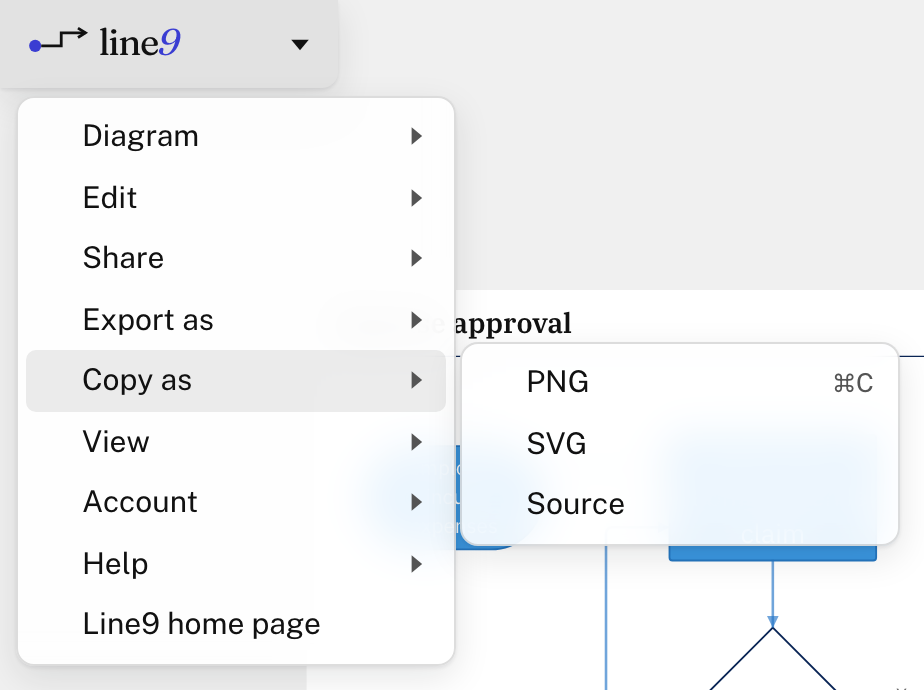
To save a file instead, choose Export as, then PNG or SVG. The file is named after the diagram, such as line9-expense-approval.png.
An SVG stays sharp at any size and includes its fonts. Use a PNG where an app doesn’t accept SVG.
Keep or pass on the text
Copy as ▸ Source copies the diagram’s Mermaid text. Export as ▸ Source saves it as a .mmd file.
Keep the text with your other files. To open it in Line9 again, paste it into the diagram page or drop the file on it. See Start a diagram.
GitHub and GitLab draw Mermaid text in Markdown files themselves, with Mermaid’s layout. To show the Line9 layout there, publish the diagram and embed it.
The Line9 watermark
The watermark is the Line9 logo in the bottom-right corner of the diagram.
- Without Line9 Pro, images include it. With Line9 Pro, they don’t.
- Images saved from a shared link always include it.
- The text never includes it.
A link or a published page?
With Line9 Pro, you can also publish a diagram to its own page.
| Shared link | Published page | |
|---|---|---|
| Needs Line9 Pro | No | Yes |
| The address | Long, and holds the diagram | Short: line9.ai/d/… |
| After you change the diagram | Copy a new link | Publish a new version, at the same address |
| Who can open it | Anyone with the link | Your team, anyone, or only you |
| Show it inside a wiki or web page | No | Yes, if it’s Public |
| Images saved from it include the Line9 watermark | Yes | No |
Next
- Publish a diagram: give it its own page.
- Theme, orientation and spacing: get it ready for a slide or document.