Colour-code with classes
Why colour-code a diagram
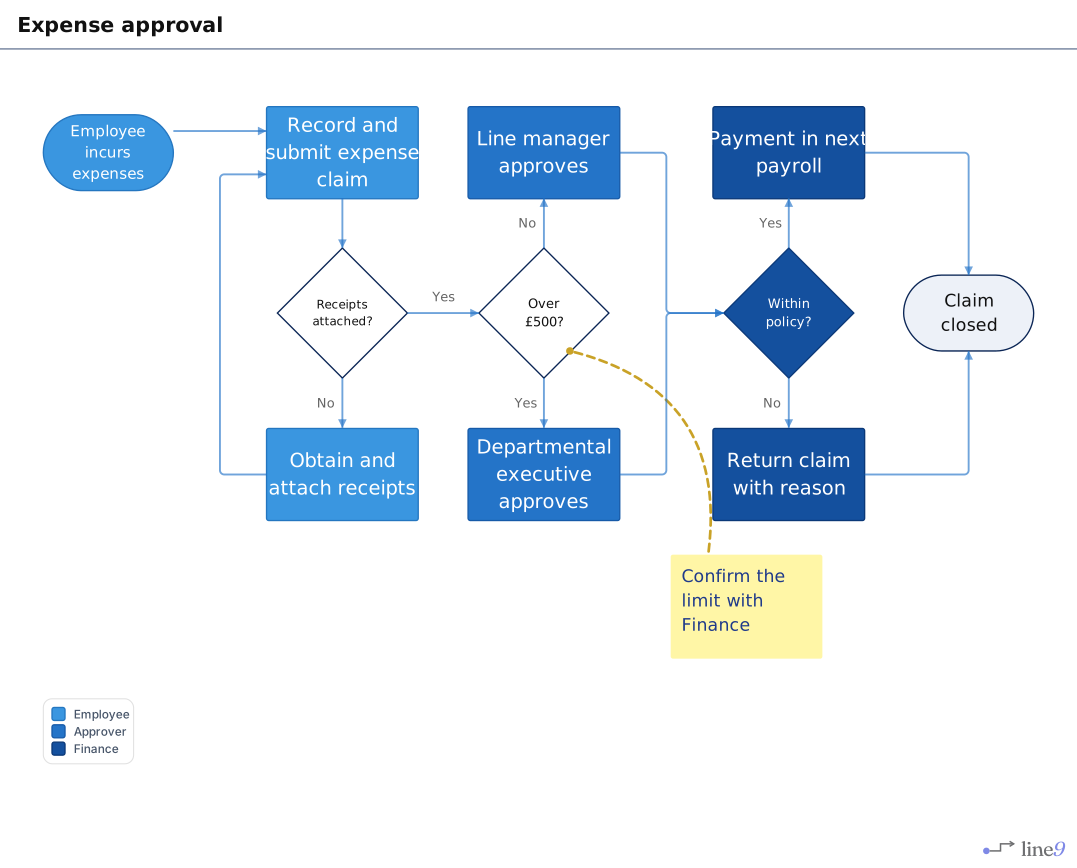
Colour shows at a glance who does each step, or which system it belongs to. In this diagram, each colour is a role: Employee, Approver and Finance. The legend in the bottom-left corner names them.
Give a node, edge or group a class
A class is a name you give to the items that belong together. Line9 colours each class differently.
| To give a class to | Write |
|---|---|
| A node | pay["Payment in next payroll"]:::Finance |
| Several nodes | class pay,reject Finance |
| A group | class finance Finance |
| An edge | limit e1@--> director, then class e1 Escalated |
Choose names your readers will understand, such as a team or a system: the legend shows them as written. A class name can’t contain spaces, so use a hyphen, such as Line-manager.
With Line9 Pro, in the Line9 editor, put the cursor on a node, edge or group, or select several, and type :class followed by the name.
The legend
The legend names each class and shows its colour. Line9 adds it once the diagram has a class, and places it in a corner of the diagram.
To hide the legend, click Legend in the style panel.
How Line9 picks the colours
The theme sets the colours. Line9 ignores colours set in the text with classDef or style: only the class name matters.
- Classes take the theme’s colours in the order they first appear in the text.
- Boardroom, Linen and Kingfisher have four colours for node classes. Edges and groups have colours of their own.
- A class sets only an edge’s colour. Its line stays solid, dotted or thick, as written.
- A class beyond the theme’s colours is drawn like an item with no class.
- An item with more than one class takes the colour of the first.
- The Blueprint theme draws every item alike, so classes don’t change its colours.
Next
- Theme, orientation and spacing: choose how the whole diagram looks.
- Nodes, edges and groups: the parts you can give a class.