Update and manage published diagrams
Publish a new version
Change the diagram, then:
- Click Share, then Publish a new version. Or press ⌘S (Mac) or Ctrl+S (Windows).
- Change who can see it under Visibility, if you need to.
- Click Publish.
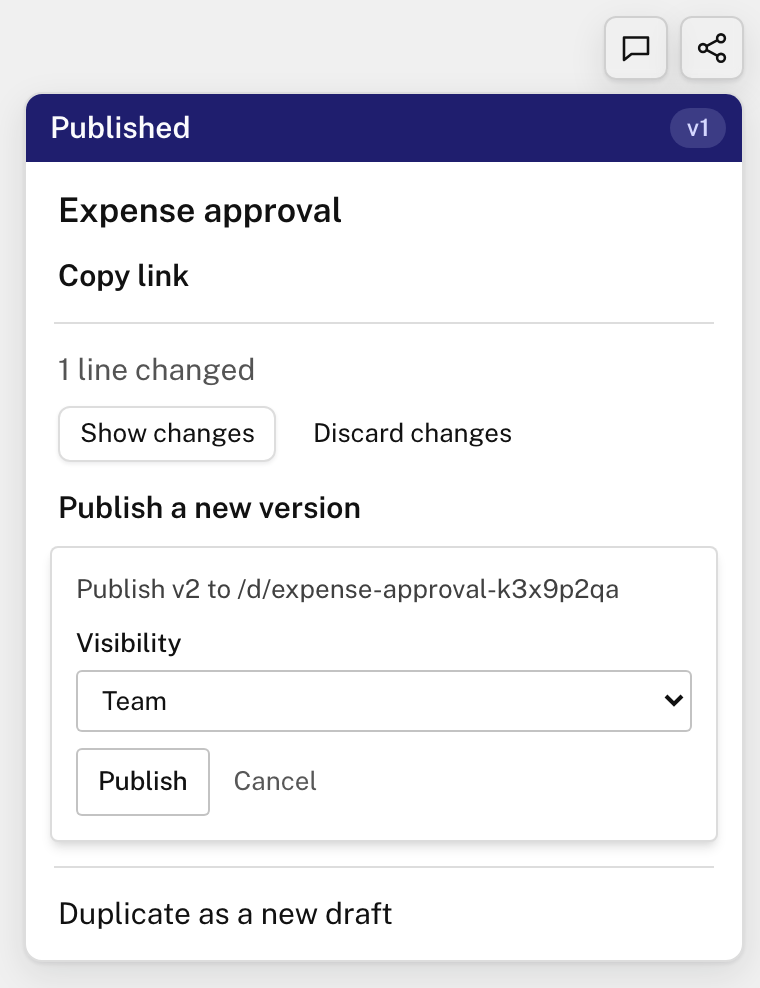
The address stays the same, so links and embeds show the new version. A Public diagram can take up to a day to show it everywhere.
If someone else published a version while you were making changes, Line9 tells you before yours replaces it.
Show or discard changes
Once a diagram is published, Share shows how many lines you’ve changed since.
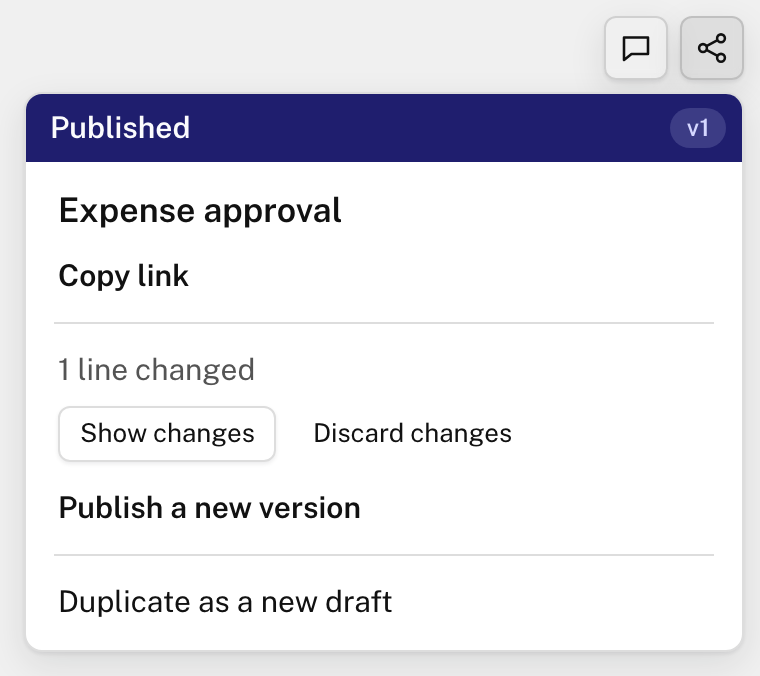
- Hold down Show changes to see the published version. Let go to see yours.
- Discard changes puts the diagram back to the published version. To get your changes back, press ⌘Z (Mac) or Ctrl+Z (Windows).
Duplicate a published diagram
Share ▸ Duplicate as a new draft makes a copy that isn’t published. Publishing the copy gives it a page of its own, and leaves the original as it is.
People who can see your published diagram can duplicate it too: on its page, open the menu in the top-left corner and choose Duplicate.
Your published diagrams
Every diagram your team has published is listed on your dashboard. Sign in at line9.ai and click Diagrams. From the diagram page, choose Account ▸ Dashboard in the menu.
- Search by name, or show only Team, Public or Private diagrams.
- Click a diagram’s name to open its page.
- Click Open in editor to open it on the diagram page and change it, or Copy link to share it.
- Click Manage to rename it, change who can see it or delete it.
Renaming changes the address. Old links still work: they take people to the new address.
Deleting a diagram stops its link and embed working. A Public diagram can take up to a day to disappear everywhere.
Publish from a terminal
You can also publish with the Line9 CLI. See Publish from the terminal.
Next
- Embed a published diagram: show it inside a wiki or web page.
- Share a link, image or text: send a diagram without publishing it.