How the Line9 editor works
The Line9 editor comes with Line9 Pro. Without Pro, you can try it on any diagram: see Trying it without Line9 Pro.
Line9 automatic layout
In the Line9 editor, you change the diagram itself instead of its text. You add, connect, rename and delete nodes, edges and groups, and Line9 places every node and edge for you. There is nothing to drag into place.
With Line9 Pro, Line9 writes your changes into the diagram’s text when you leave the editor.
What a flowchart is made of
The editor works on flowcharts, which are made of:
- Nodes: steps and decisions, each with a shape.
- Edges: the lines between nodes, with or without a label.
- Groups: boxes round related nodes, with a title.
- Comments and text blocks: notes beside the flow.
Nodes, edges and groups and Comments and text blocks describe each one. On these pages, a node, edge or group is called an item.
Keyboard, mouse or both
Every command has keys, and most can also be done with the mouse:
- Double-click a node to edit its label.
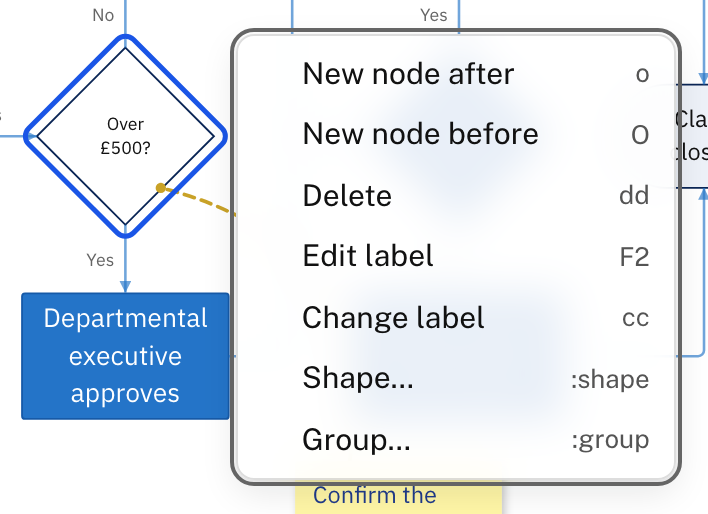
- Right-click an item, or press Enter in the editor, to see the commands for it, with their keys.
- Press ⌘K (Mac) or Ctrl+K (Windows) to find any command by name.
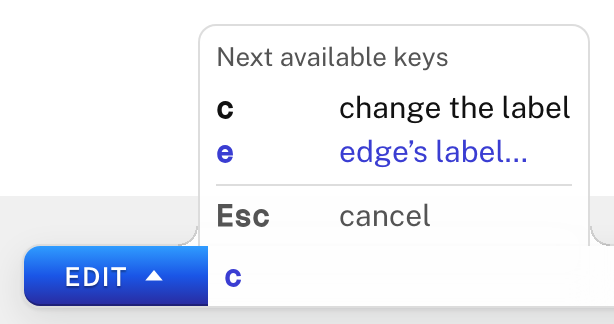
Some keys wait for another key: c waits to know what to change. While one waits, a panel lists the keys that can follow.
To list every key that works at that moment, press ?, or click ? keyboard hints in the bar at the bottom.
If you use Vim: The Line9 editor is inspired by Vim. It uses keys Vim users know, such as
hjkl,cc,dd,o,uand:q. Here they move between and change nodes, edges and groups instead of lines of text.
Modes: Edit, Visual and Insert
Choosing EDIT on the mode button opens the editor. Inside the editor there are three modes, and the bar at the bottom shows which one you’re in.
| Mode | What you’re doing | How to get there |
|---|---|---|
| Edit | Working on the item the cursor is on | Enter the editor |
| Visual | Selecting several items to change at once | Press v, or Shift-click or ⌘-click (Ctrl-click) an item |
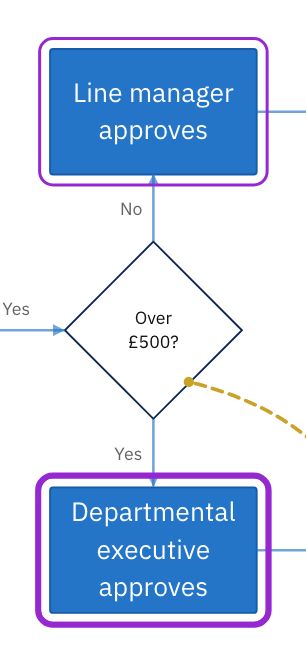
| Insert | Typing a label | Press cc, or double-click a node |
In Visual mode, press Esc or v to end the selection. In Insert mode, press Enter to keep the label.
The cursor and selection
The cursor is a blue ring round one node, edge or group. Commands act on the cursor’s item. To move it:
- Press the arrow keys, or
hjkl, to go to the next node in that direction. - Press
f: a short code appears beside each node in view. Type a node’s code to move to it. - Press
/and type part of a label to search. Pressnfor the next match. - Click an item.
In Visual mode, each node you move to is added to the selection, and commands act on all of it.
Trying it without Line9 Pro
The Line9 editor comes with Line9 Pro. Without a Pro account, double-click a node or press Enter, and Line9 offers a preview. Choose Try it to use the editor on that diagram.
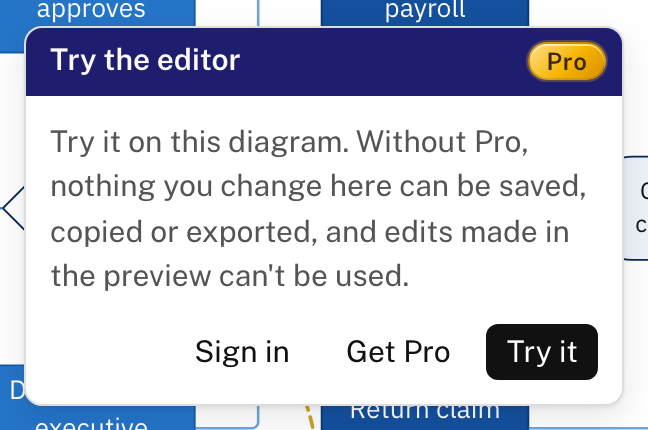
Nothing you change in the preview can be saved, copied or exported.
Next
- Editor tutorial: build a flowchart step by step.
- Editor reference: every command, with its keys and mouse action.