Editor reference
How keys combine
Some commands are an action key followed by what it acts on.
| Keys | Does |
|---|---|
cc | Change the label of the cursor’s item |
ce | Change the label of one of its edges, chosen by code |
dd | Delete the cursor’s item |
de | Delete one of its edges, chosen by code |
dig | Delete the group the cursor is in, with its contents |
> | Connect to the node the next move ends on |
zz | Centre the view on the cursor |
In Visual mode, c, d and > act at once on the selection.
Commands that start with : are typed in the bar at the bottom. Type the command and its choice together, such as :shape dia, then press Enter. Tab completes a choice, and Esc closes the line.
On Windows, read Ctrl for ⌘.
Every command
The command palette is a search box for every command on the diagram page. Press ⌘K, type part of a command’s name and press Enter. The editor’s commands start with Editor:.
Entering and leaving
| Command | Keys | Mouse | In the palette |
|---|---|---|---|
| Editor | ⌘E enters or leaves; Enter enters | Double-click a node, or choose EDIT on the mode button | View: Editor |
| Leave the editor | :q or ⌘E | Choose VIEW or SOURCE on the mode button | Not in the palette |
Move
| Command | Keys | Mouse | In the palette |
|---|---|---|---|
| Move | h j k l or the arrow keys; n N after a search | Click an item | Editor: Move left, down, up or right |
| Find by code | f, then a code | Not in the palette | |
| Search | / or ⌘F, then type part of a label | Editor: Search | |
| Edge | e, then a code | Click an edge | Editor: Edges between, in Visual mode |
| Centre on cursor | zz | Editor: Centre on cursor |
Change
| Command | Keys | Mouse | In the palette |
|---|---|---|---|
| Edit label | F2, i or a | Double-click the item | Editor: Edit label |
| Change label | cc, or ce for an edge | Right-click, Change label | Editor: Change label |
| New node after | o | Right-click, New node after | Editor: New node after |
| New node before | O | Right-click, New node before | Editor: New node before |
| Connect | >, then a move | Select two nodes, right-click, Connect | Editor: Connect |
| Connect the other way | <, then a move | Select two nodes, right-click, Connect the other way | Editor: Connect the other way |
| Delete | dd, de, dig, Delete or Backspace | Right-click, Delete | Editor: Delete |
i starts typing at the beginning of the label, and a at the end. cc starts from an empty label.
Select
| Command | Keys | Mouse | In the palette |
|---|---|---|---|
| Visual mode | v | Shift-click or ⌘-click an item | Editor: Visual mode |
| Inside a group | ig, in Visual mode | Right-click, Select group contents | Editor: Select group contents |
In Visual mode, e selects the edges between the selected items (Editor: Edges between), and d deletes the selection.
The : line
| Command | Keys | Mouse | In the palette |
|---|---|---|---|
| Command line | : | Editor: Command line | |
| Shape | :shape for a node, :line for an edge | Right-click, Shape… or Line… | Editor: Shape: Diamond, Editor: Line: Dotted, and so on |
| Group | :group | Right-click, Group… | Editor: Group: and the group’s title, No group or New group… |
| Class | :class or :style | Editor: Class: and the class name, No class or New class… | |
| Revert editor changes | :e! | Editor: Revert editor changes |
:group with a title that doesn’t exist yet makes a new group. :class works on nodes, edges and groups. A space in a class name becomes -.
:title followed by a name renames the diagram.
More
| Command | Keys | Mouse | In the palette |
|---|---|---|---|
| Context menu | Enter | Right-click an item | Editor: Context menu |
| Undo | u | Edit ▸ Undo | Not in the palette |
Press ?, or click ? keyboard hints in the bar, to list every key that works at that moment.
Shapes and line styles
:shape lists every shape with a picture and what it usually means. Type part of a name, or a meaning such as decision, to narrow the list.
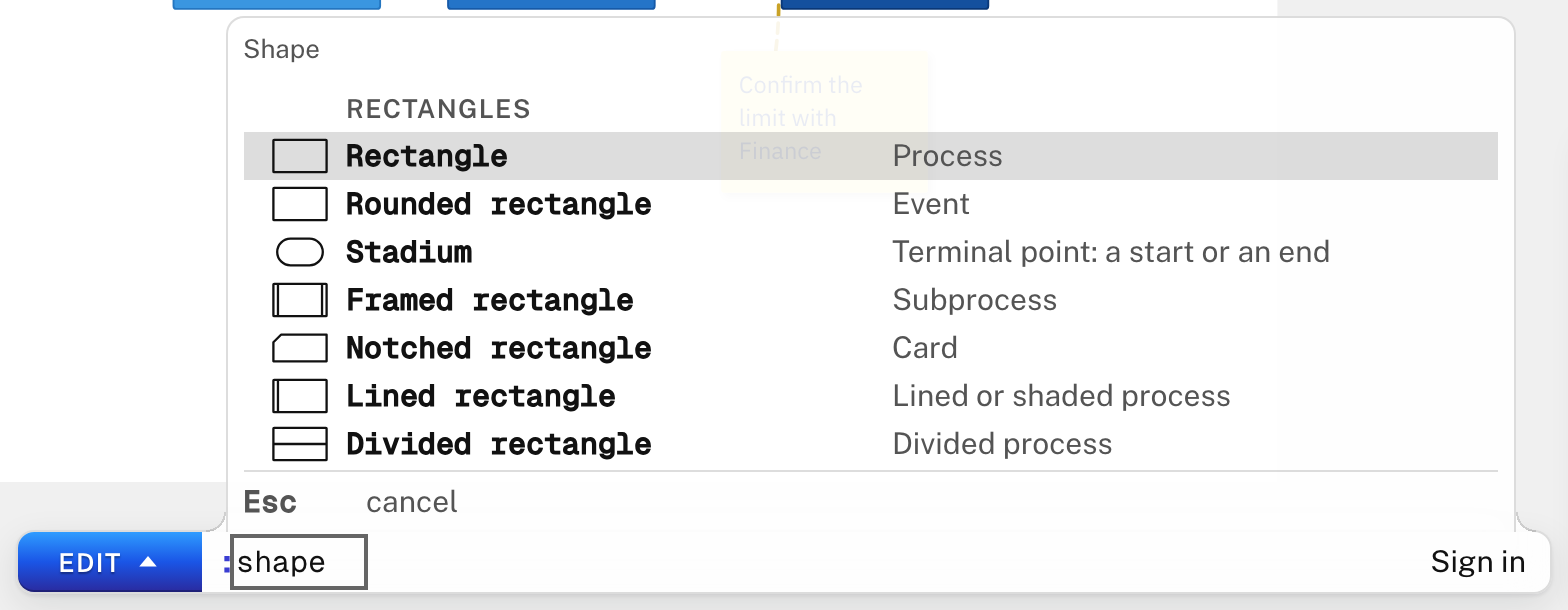
| Group | Shapes |
|---|---|
| Rectangles | Rectangle · Rounded rectangle · Stadium · Framed rectangle · Notched rectangle · Lined rectangle · Divided rectangle · Stacked rectangle · Tagged rectangle · Sloped rectangle · Window pane · Bow-tie rectangle · Half-rounded rectangle |
| Diamonds and other polygons | Diamond · Hexagon · Lean right · Lean left · Trapezoid, wide at the bottom · Trapezoid, wide at the top · Odd · Triangle · Flipped triangle · Notched pentagon · Hourglass · Curved trapezoid |
| Circles | Circle · Double circle · Small circle · Framed circle · Filled circle · Crossed circle |
| Cylinders | Cylinder · Horizontal cylinder · Lined cylinder |
| Documents | Document · Stacked document · Lined document · Tagged document |
| Braces and other shapes | Curly brace, left · Curly brace, right · Curly braces · Lightning bolt · Flag · Cloud · Bang · Fork or join bar |
| Notes: sit outside the flow | Comment · Text block |
Hourglass, Small circle, Framed circle, Filled circle, Crossed circle, Lightning bolt, Bang and Fork or join bar don’t show their label.
:line lists the line styles: Solid, Dotted and Thick.
Undo and starting over
uor ⌘Z undoes the last change. The bar at the bottom says what was undone.- ⇧⌘Z redoes it. On Windows, Ctrl+Y also redoes.
:e!puts the diagram back as it was when you entered the editor.
In the editor, Publish, Export and Copy don’t run: Line9 asks you to leave the editor first, with :q.
Next
- Keys: every key on the diagram page and in the editor.
- Editor tutorial: build a flowchart step by step.