Comments and text blocks
Add comments beside the diagram for drafts and reviews, and text blocks for captions.
Which to use: a comment or a text block
Both are notes beside the diagram. A note can point to the node it explains, or stand on its own.
- A comment is a sticky note, for drafts and reviews. You can hide every comment at once.
- A text block is a card for a caption or an explanation. It always shows.
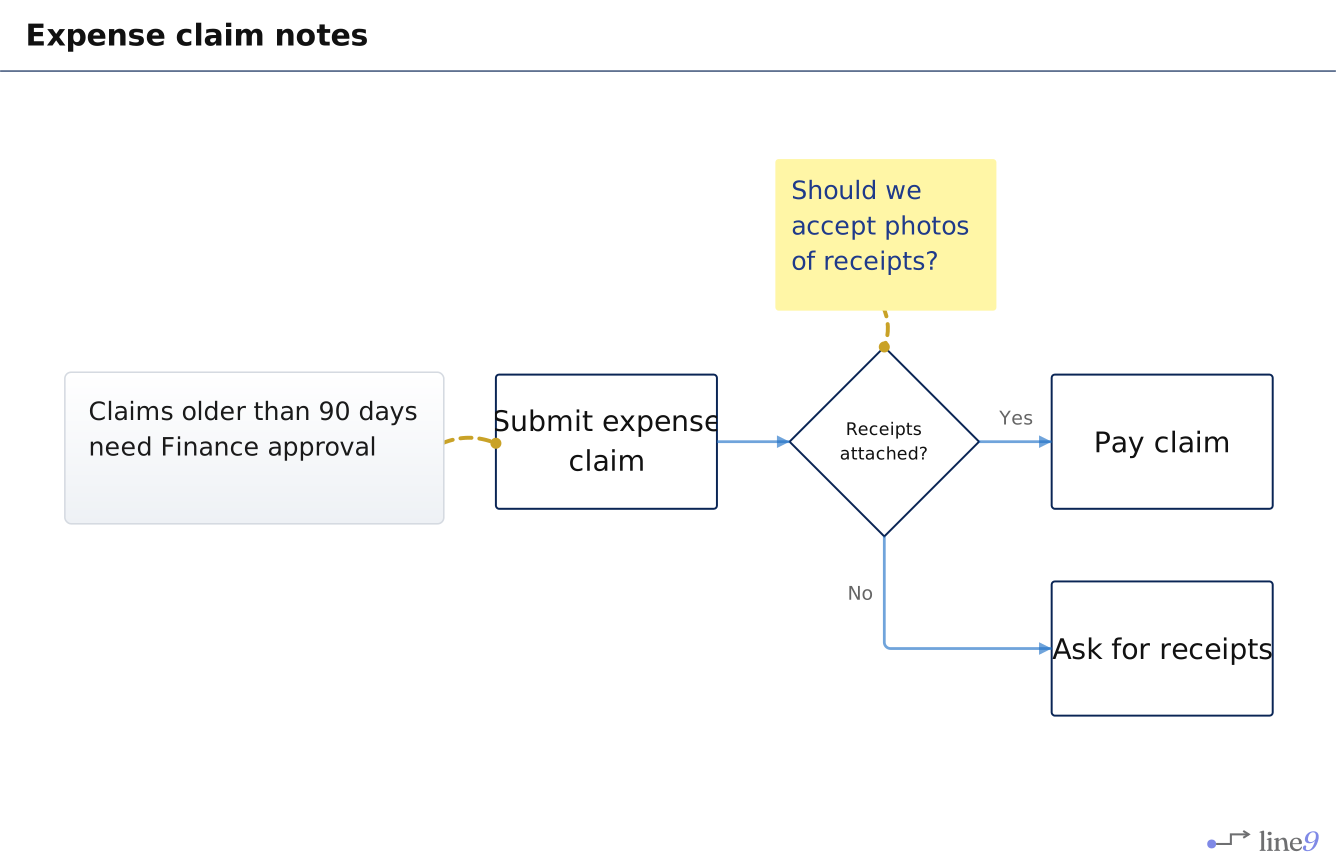
Line9 places notes beside the flow, so adding one doesn’t rearrange the nodes.
Add a comment or text block
In the text, write the note as a node with the shape comment or text:
draft["Should we accept photos of receipts?"]@{ shape: comment }
caption["Claims older than 90 days need Finance approval"]@{ shape: text }
To make a note point to a node, join them with an edge:
draft --> check
caption --> claim
With Line9 Pro, in the Line9 editor, put the cursor on a node and type :shape comment or :shape text. To make the note point to a node, press > and move to that node.
Hide comments before you share
Click Comments in the style panel to hide every comment. Text blocks still show.
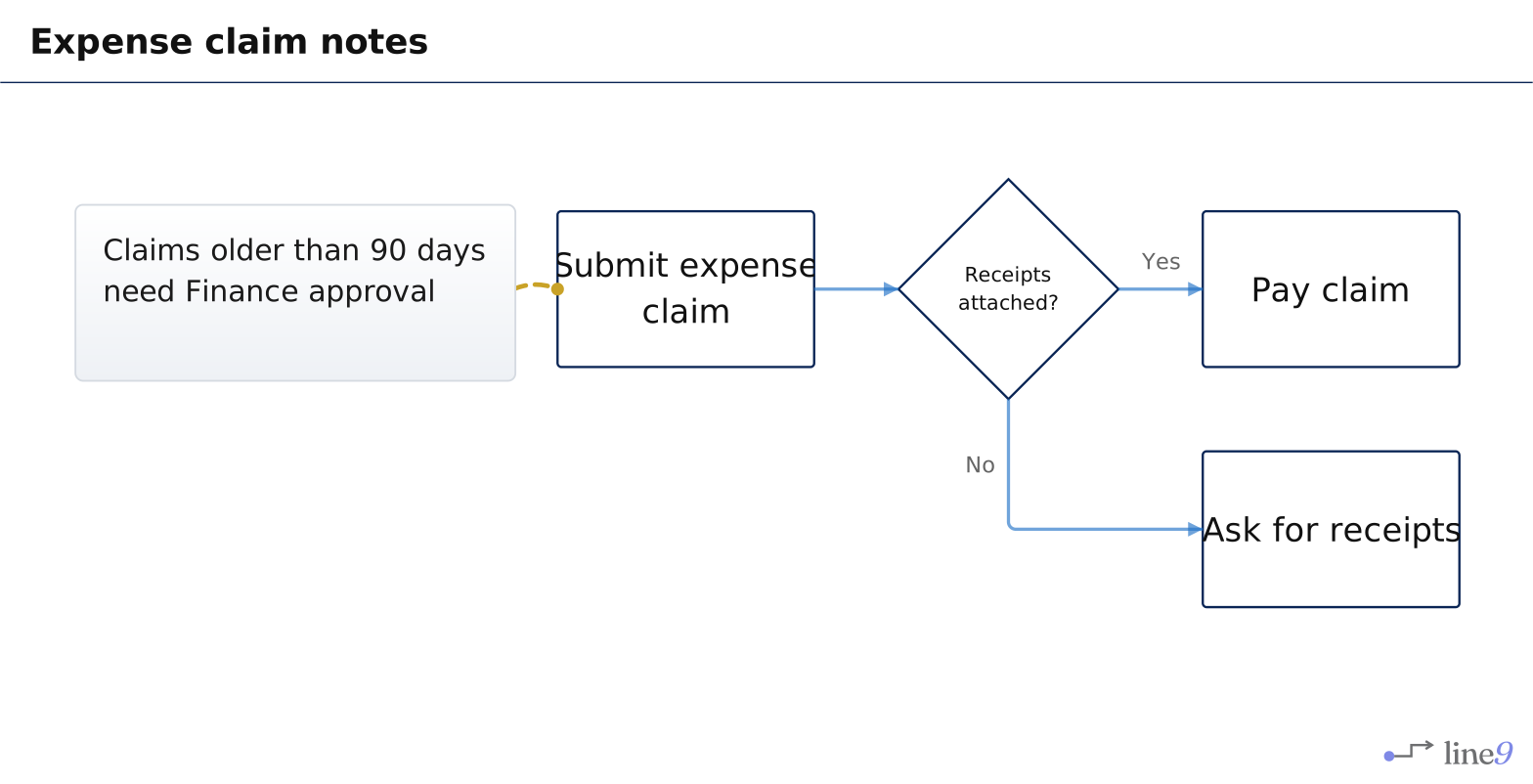
The Comments setting appears once the diagram has a comment. It is saved with the diagram, so a shared link or published diagram keeps it.
Next
- Colour-code with classes: colour nodes by role.
- Theme, orientation and spacing: the other style settings.