Publish a diagram
Give a diagram its own page with Line9 Pro, and choose who can see it.
What publishing gives you
Publishing comes with Line9 Pro. A published diagram:
- has its own page with a short address, such as
line9.ai/d/expense-approval-k3x9p2qa - shows only to the people you choose
- keeps its address when you publish a new version, so links and embeds always show the latest
- can be shown inside other pages, such as a wiki or web page, if it’s Public
- has no Line9 watermark
- appears in your team’s list of published diagrams
Publish a diagram
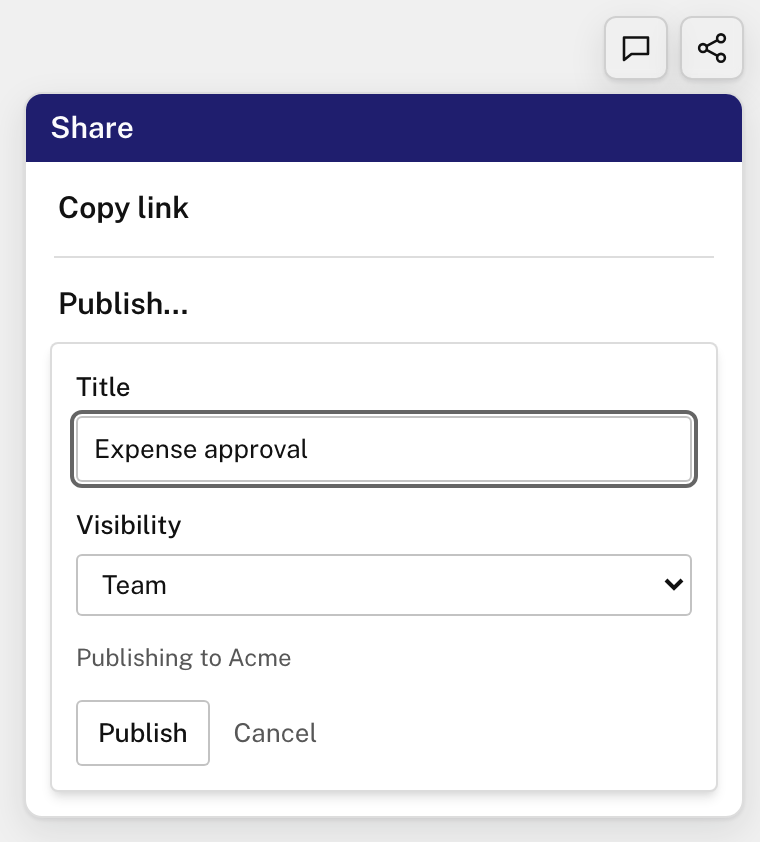
- Click Share in the top-right corner, then Publish…. Or press ⌘S (Mac) or Ctrl+S (Windows).
- Check the Title. It names the page and its address.
- Choose who can see it under Visibility.
- Click Publish.
Line9 publishes to your team: everyone in your Line9 account. The dialog shows your team’s name, such as Acme. To invite people, sign in at line9.ai and click Team.
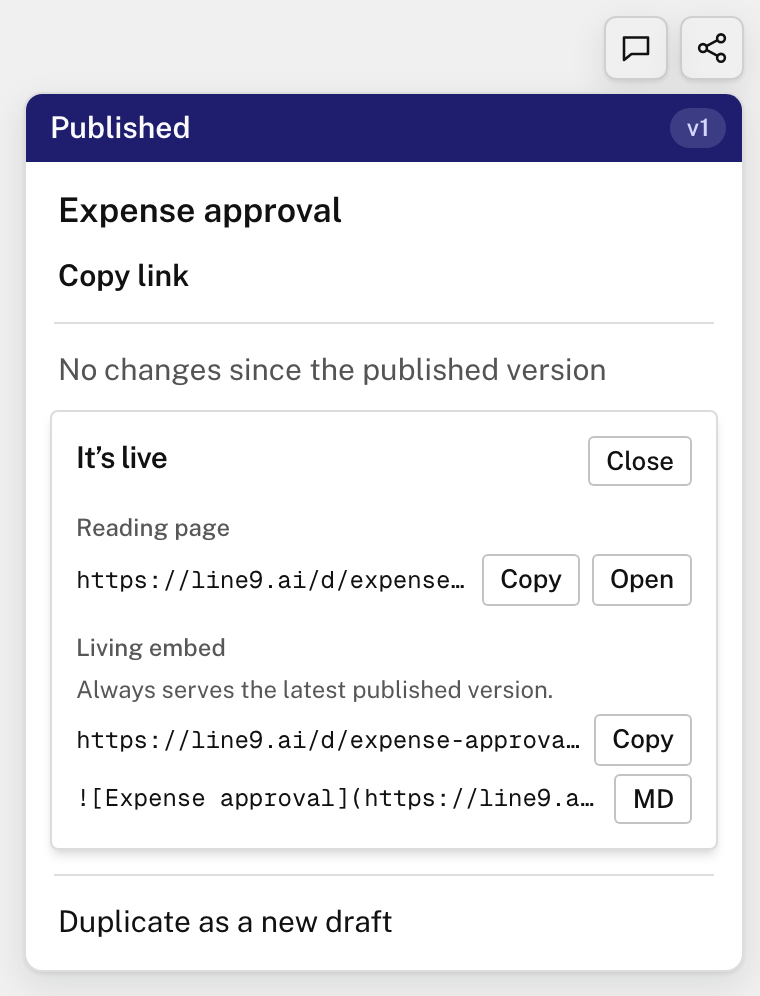
Line9 shows the page’s address, ready to copy or open, and the embed address.
Who can see it: Team, Public or Private
| Visibility | Who can see it |
|---|---|
| Team (default) | Members of your team, signed in to Line9 |
| Public | Anyone with the address |
| Private | Only you, signed in to Line9 |
Anyone else who opens the address sees a page-not-found message.
To change who can see a diagram, choose a new visibility when you publish a new version, or use Manage in your list of published diagrams.
Next
- Embed a published diagram: show it inside a wiki or web page.
- Update and manage published diagrams: publish new versions and find all of yours.